
Overview
Oracle Transactional Business Intelligence (OTBI) is a reporting and analysis tool within Oracle Fusion Cloud that enables users to build real-time reports and dashboards directly from transactional data. This guide covers the basics of OTBI, how it compares to BI Publisher, and provides step-by-step navigation to access the OTBI reporting interface through two different paths. If you want to see how OTBI reporting supports practical business flows, you can also explore our guides on Oracle Fusion General Ledger setup and the Oracle Fusion payables payment process.
What is OTBI
OTBI, or Oracle Transactional Business Intelligence, is a reporting and analysis tool within Oracle Fusion Cloud that allows users to create real-time reports and dashboards based on transactional data. It enables users to access data from various modules, analyze it, and make informed decisions without needing extensive technical knowledge. Oracle documents OTBI within its Reports and Analytics for Oracle Fusion Cloud Applications, where it is positioned as a core reporting layer for operational analysis.
OTBI vs BI Publisher
OTBI (Oracle Transactional Business Intelligence) and BI Publisher are both reporting tools in Oracle Fusion Cloud, but they serve different purposes and functionalities.
OTBI is designed for real-time reporting and analysis, allowing users to create interactive dashboards and reports based on live transactional data. It is user-friendly and requires minimal technical skills.
BI Publisher, on the other hand, is focused on generating highly formatted, pixel-perfect reports. It is ideal for producing documents like invoices, statements, and other formal reports that require specific layouts and designs. In practice, OTBI is commonly used for day-to-day analysis across modules, while BI Publisher is better suited for formal output documents and scheduled layouts.
Navigation to OTBI
BI Composer Navigation to OTBI
From the home page click on navigator.
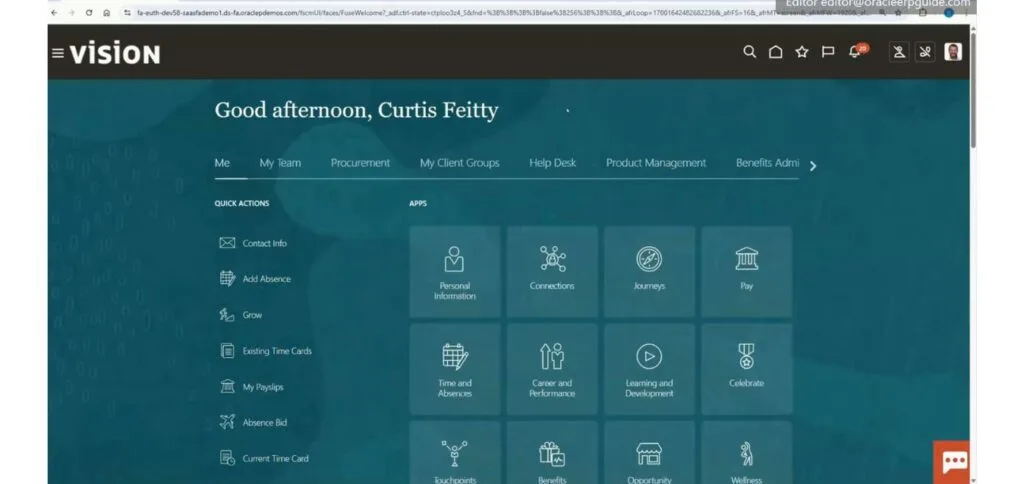
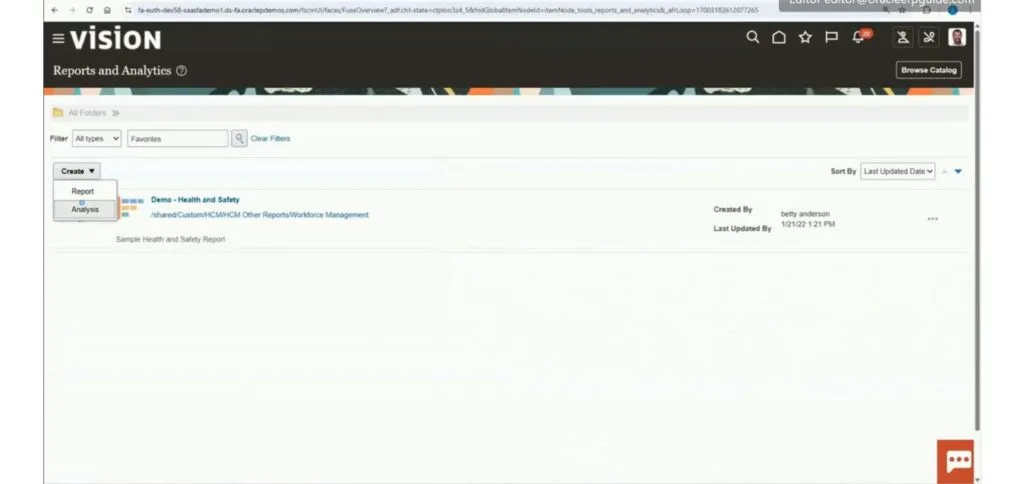
Click on Tools → Reports and Analytics.

First way through which we can navigate to OTBI is click on Create → Analysis.
Choose Subject Area as Budgetary Control – Balances Real Time.
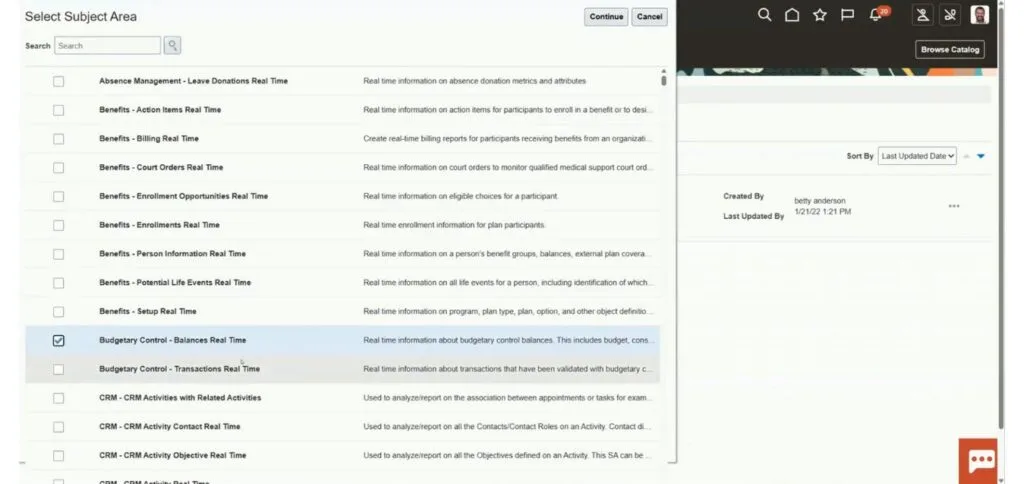
Click on Continue.
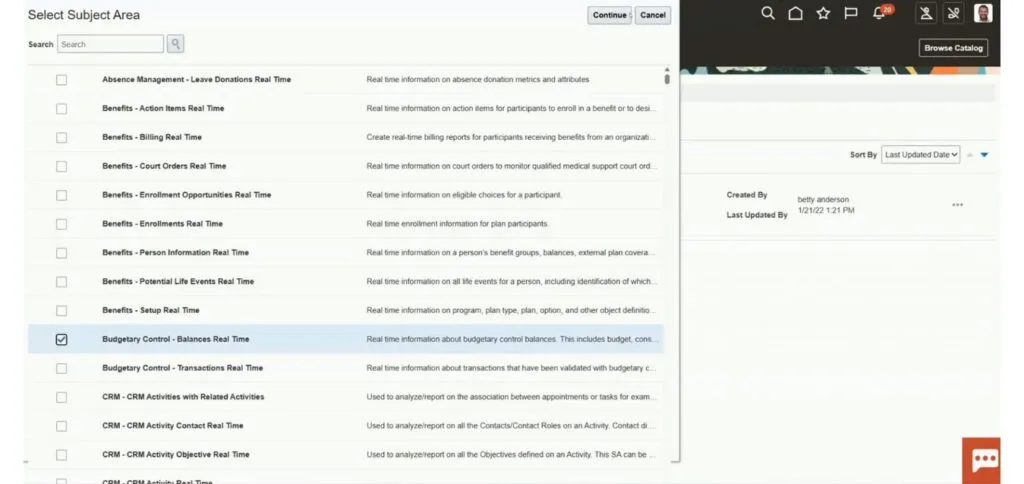
This is the BI Composer Navigation to OTBI Page.
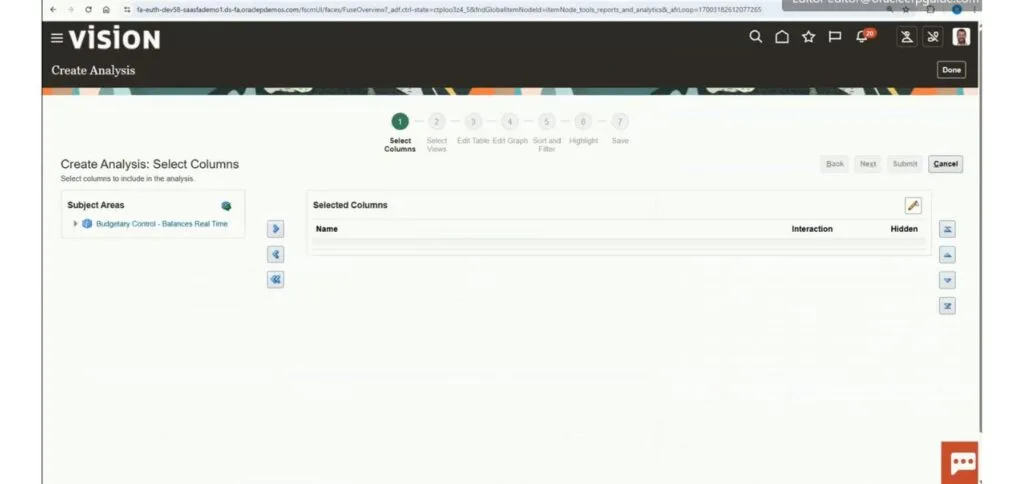
BI Analysis Editor Navigation to OTBI
From the home page click on navigator.
Click on Tools → Reports and Analytics.
Click on Browse Catalog.
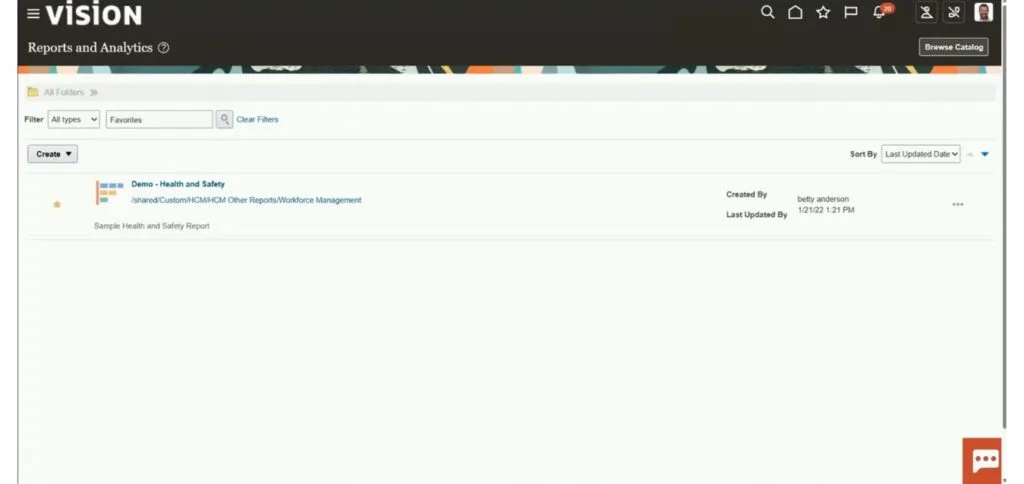
From this page click on Create → Analysis.
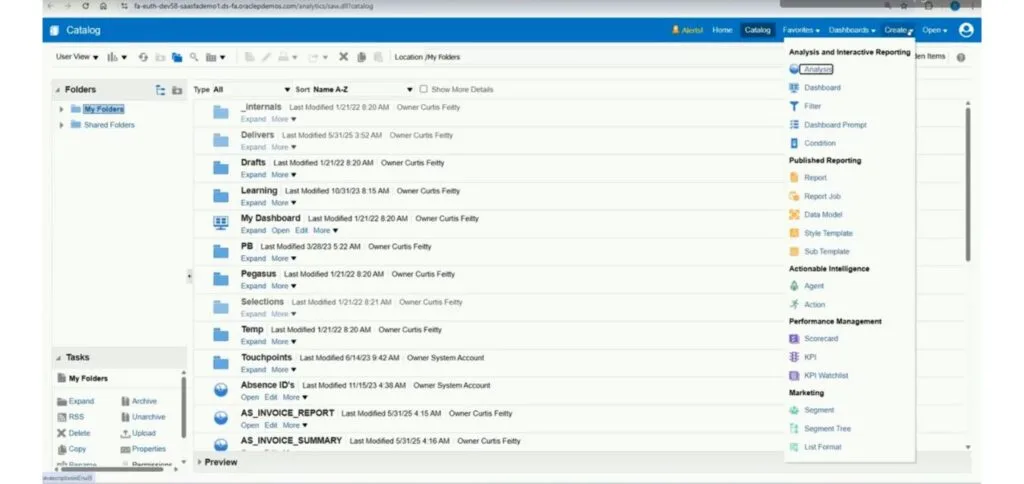
Select Subject Area.
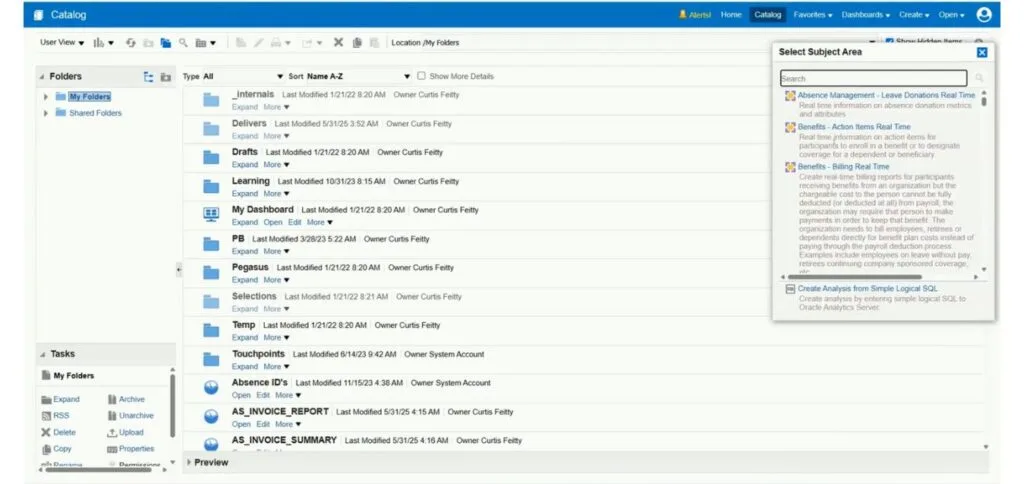
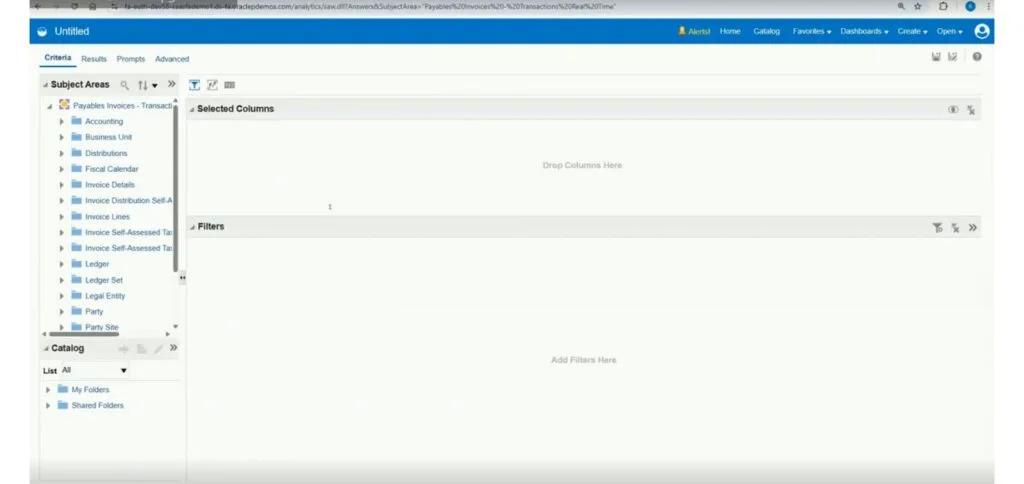
Select Subject Area as Payables Invoice – Transaction Real Time.
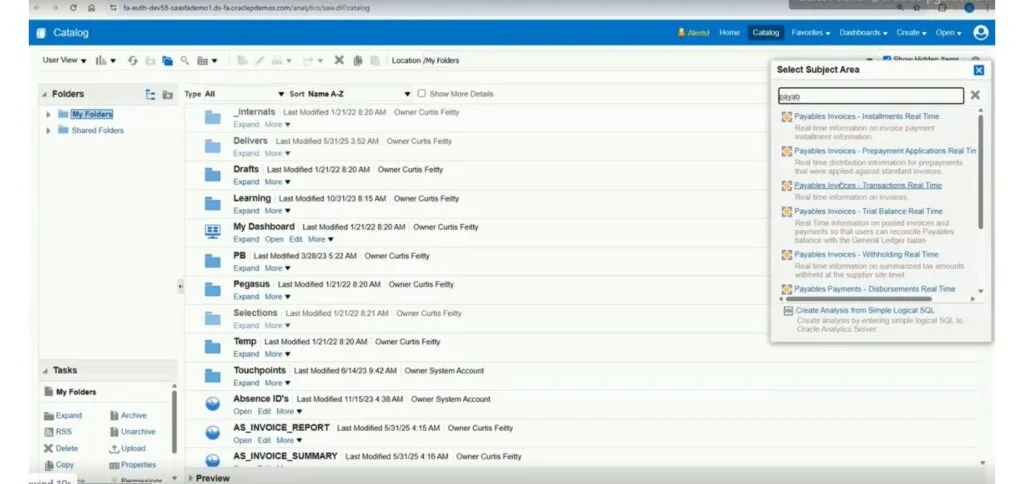
This is the OTBI Page navigated through BI Analysis Editor where we develop reports.