Assigning Data Access to Users
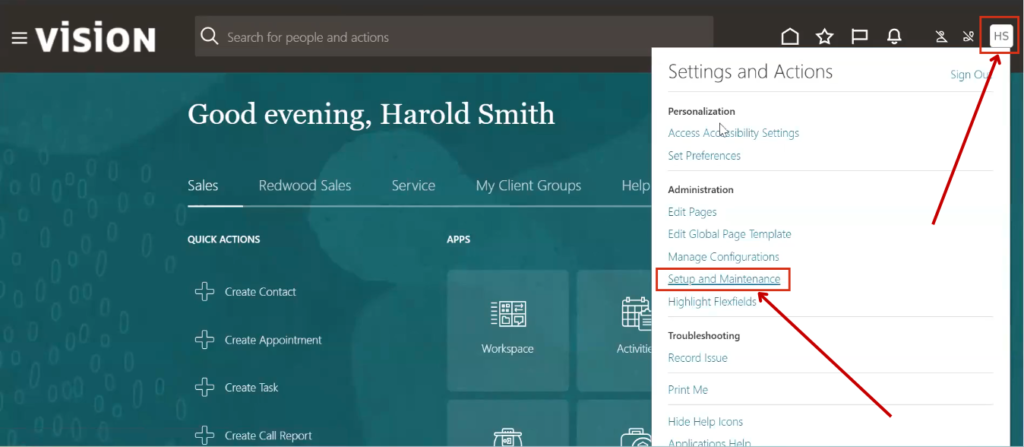
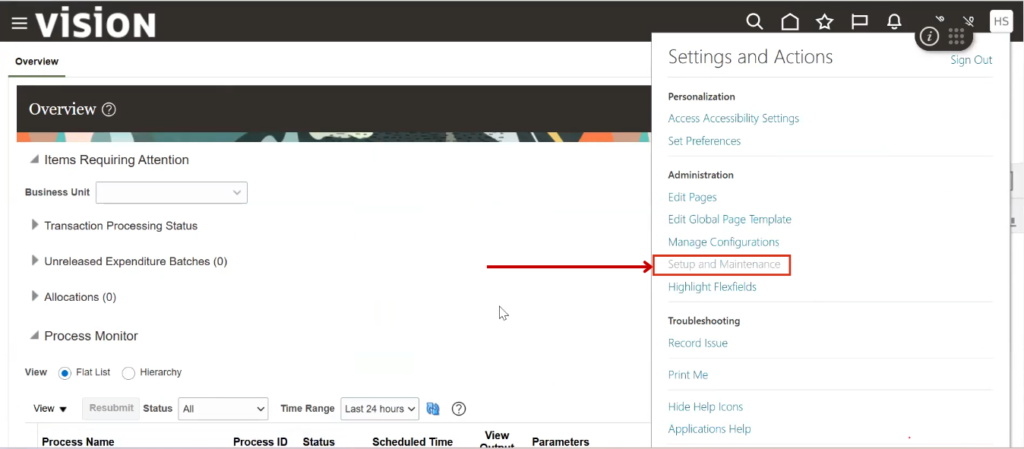
Login to the Fusion Instance and Click on Setup and Maintenance under the Username.
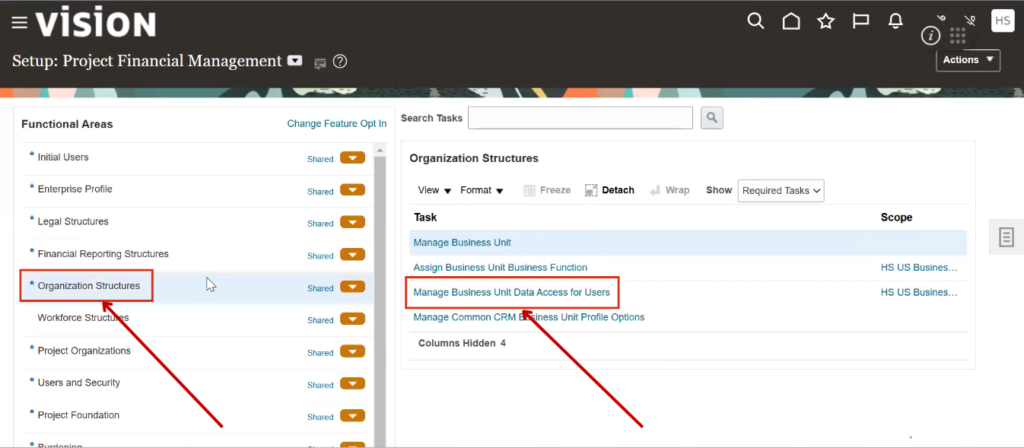
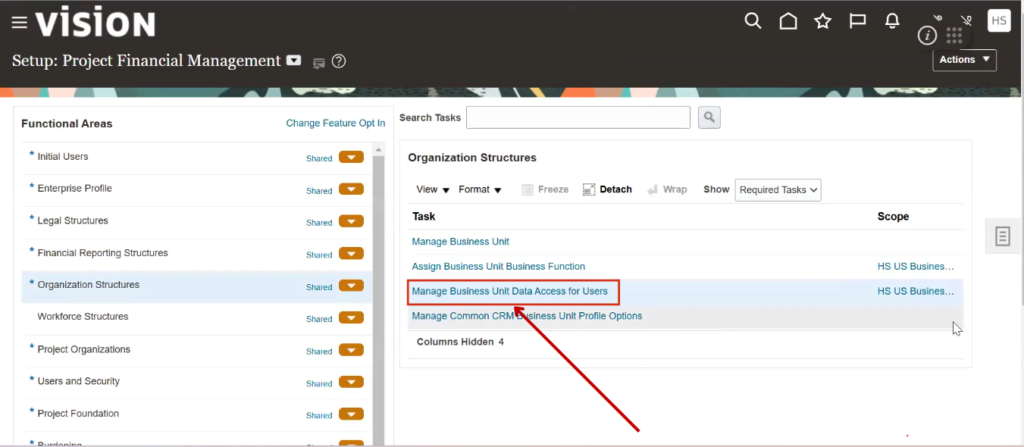
Click on Organization Structures then, click on Manage Business unit Data Access for Users.
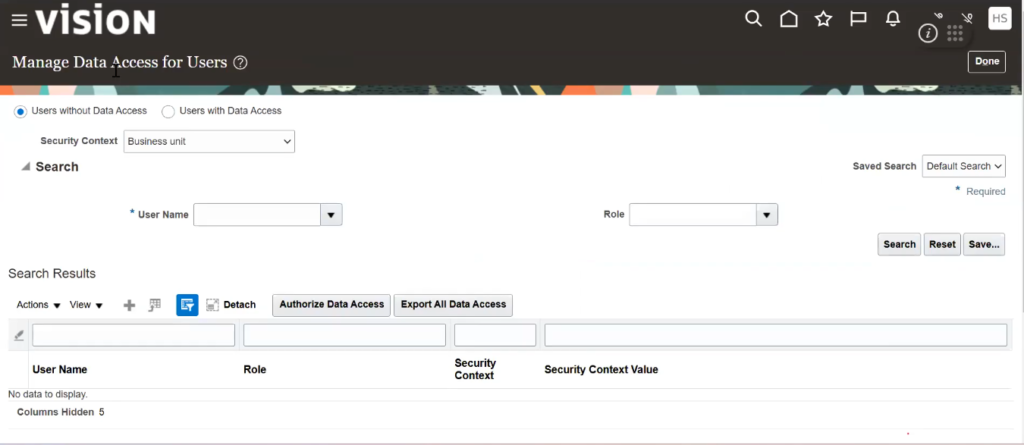
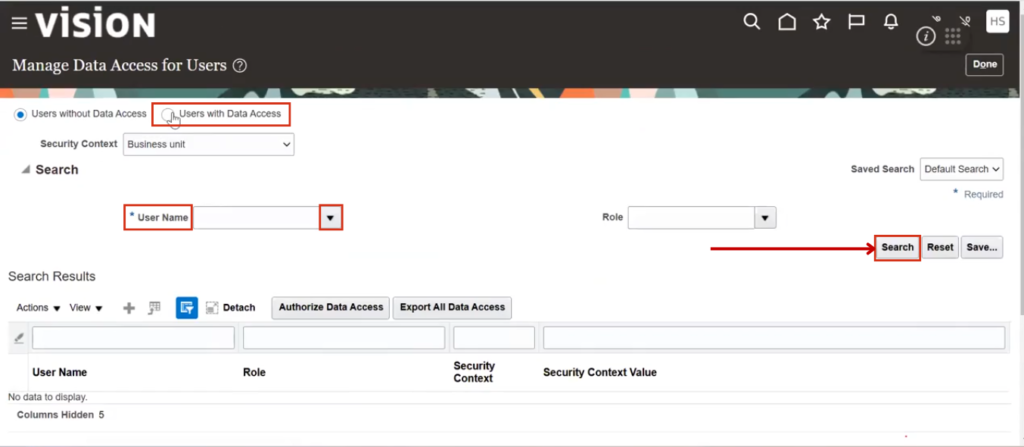
The page will look like this and allow you to search for a username.
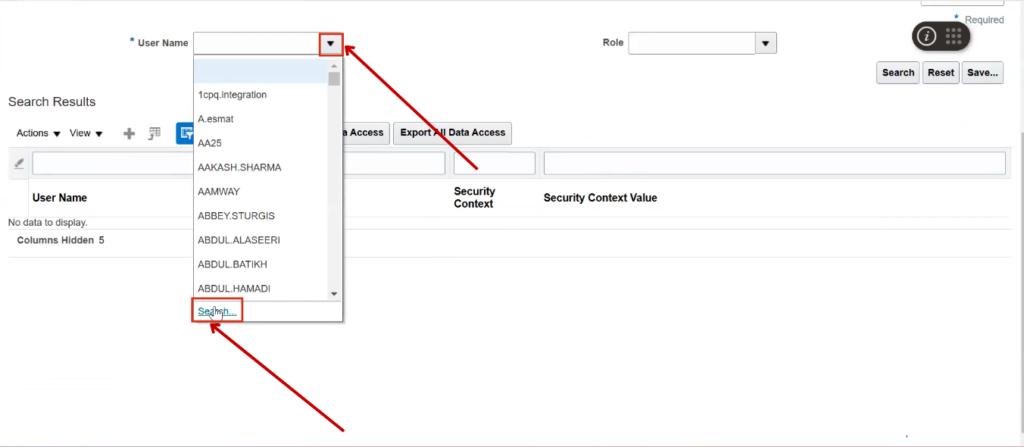
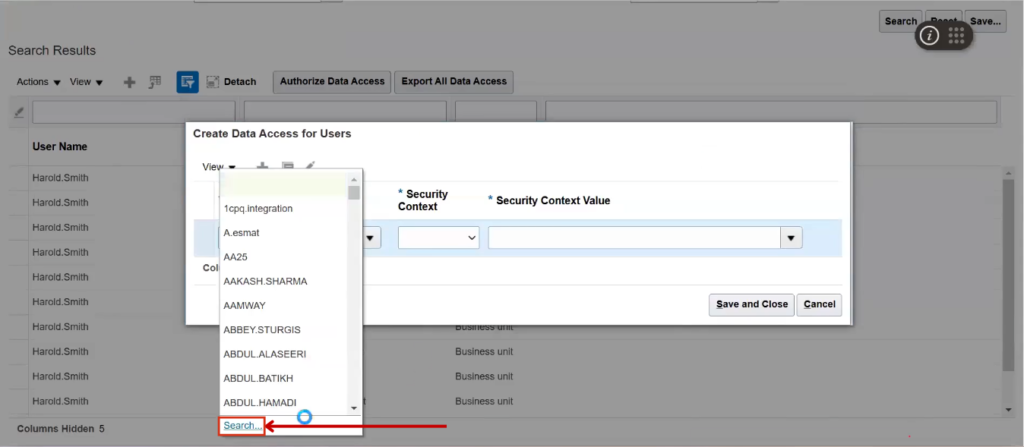
Click on the dropdown menu, then click on Search to search for a username.
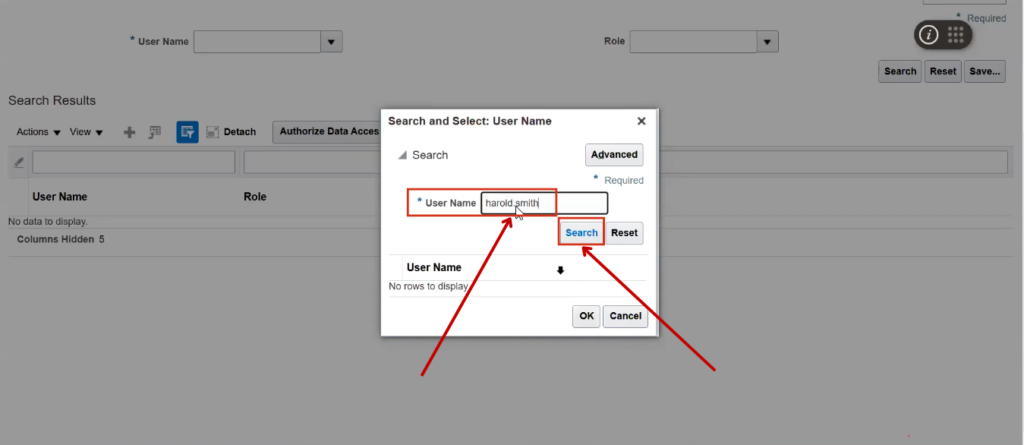
Enter the username as Harold.Smith. Click on Search.
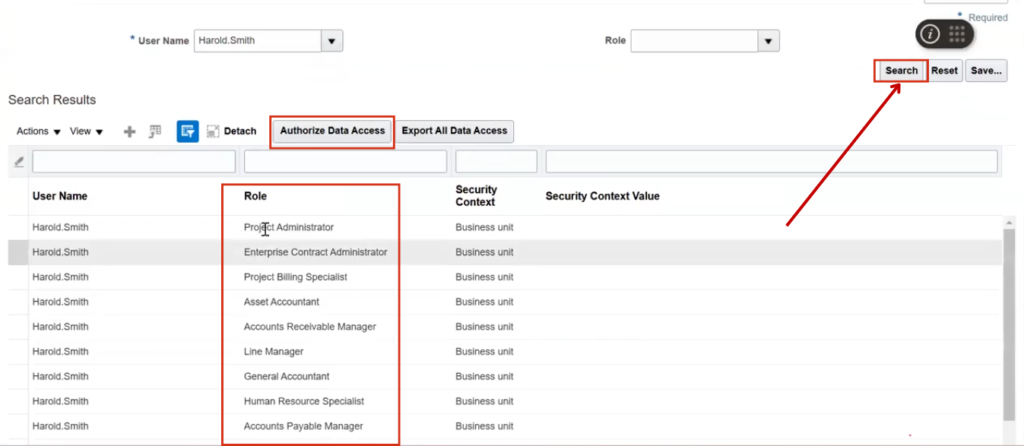
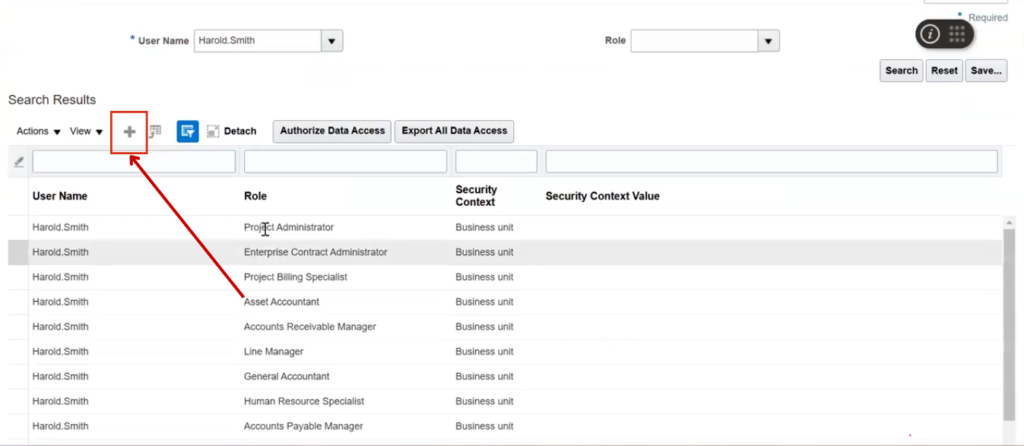
Click the Search button to display all roles in the search results.
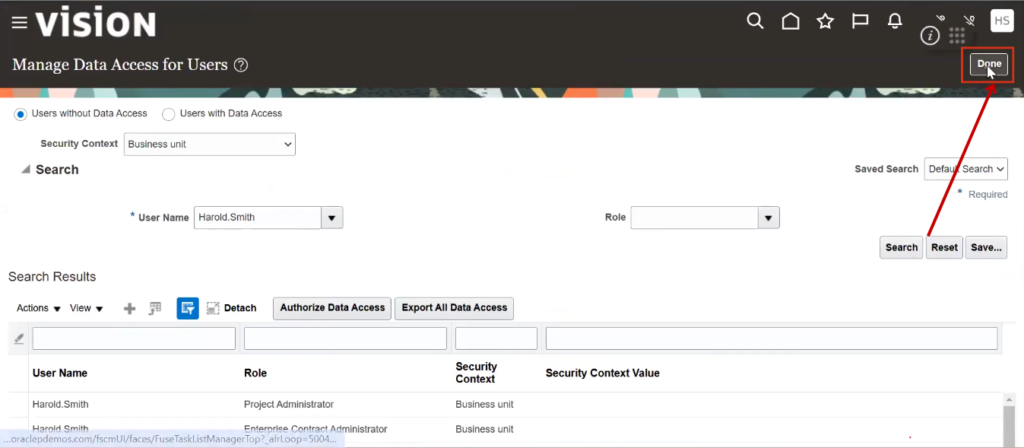
Click on Authorize Data Access to assign data access.
🔑 Grant Role-Based Access in Oracle Fusion
Learn how to assign the right data access to users, ensuring that roles and business units are properly linked to facilitate seamless operations.
💡 What You'll Learn in This Lesson:
✅ Navigating to Data Access Management
✅ Assigning Roles and Business Units
✅ Using Excel Templates for Bulk Data Assignment
✅ Manual Data Access Assignment
✅ Syncing Changes
View the LessonThere are two ways to assign data access:
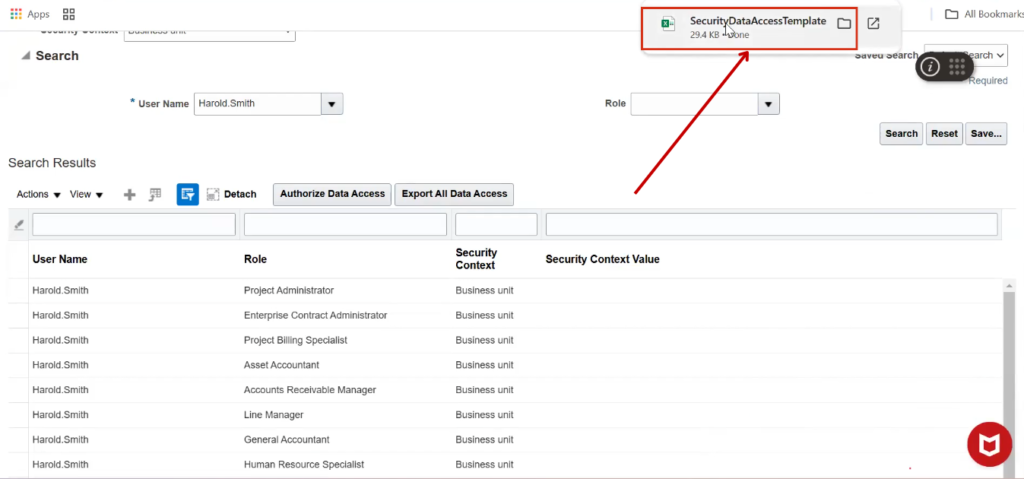
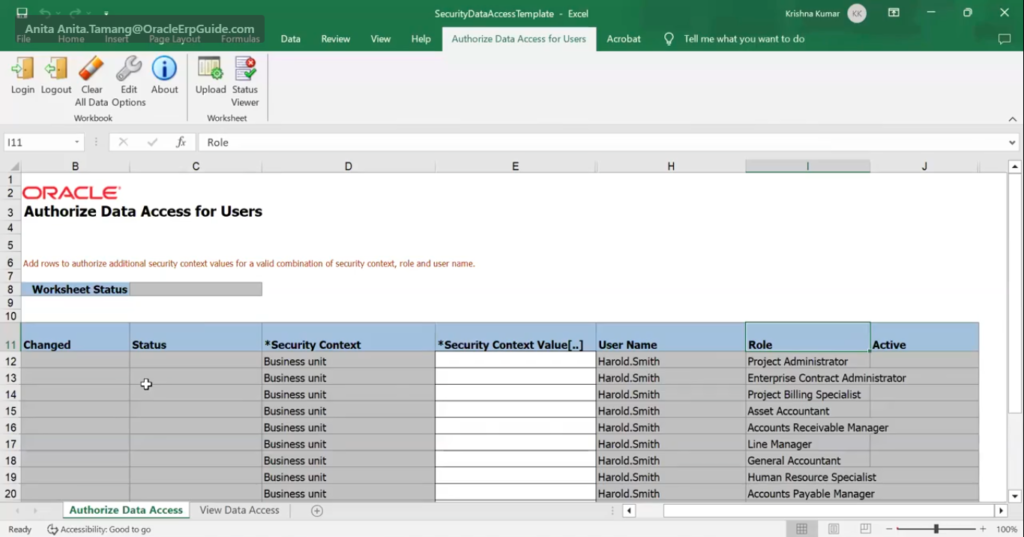
- Click on Authorize Data Access – This will download the template and load it.
- Click on the plus (+) icon – Use this to manually add data access.
The template is downloaded and appears at the top of the screen.
The template will look like this.
If you have multiple business units (e.g., ten, twenty, or thirty), along with many roles and users, Oracle provides a facility to:
Input data into the template
- Export the data directly into the application
- This facility allows for a quick and efficient process.
You have two options for entering data:
- Fill in the values in bulk using the template
- Enter data one by one if you have less information
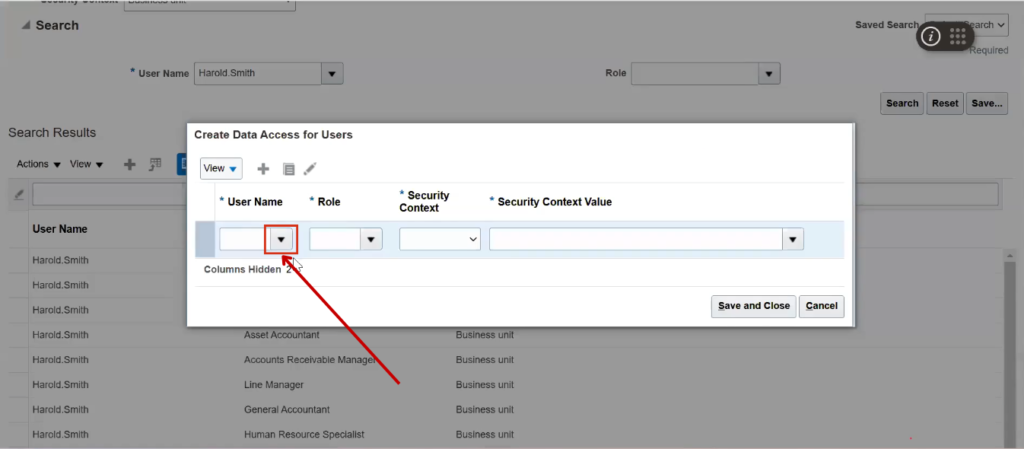
Click on the Plus icon to enter it one by one.
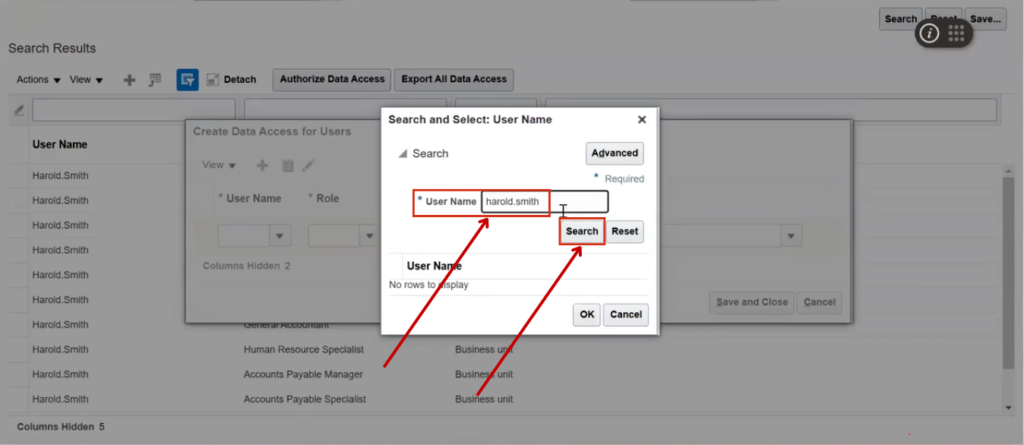
Click on the dropdown menu to search for the username.
Click on Search.
Enter the username, then click on Search.
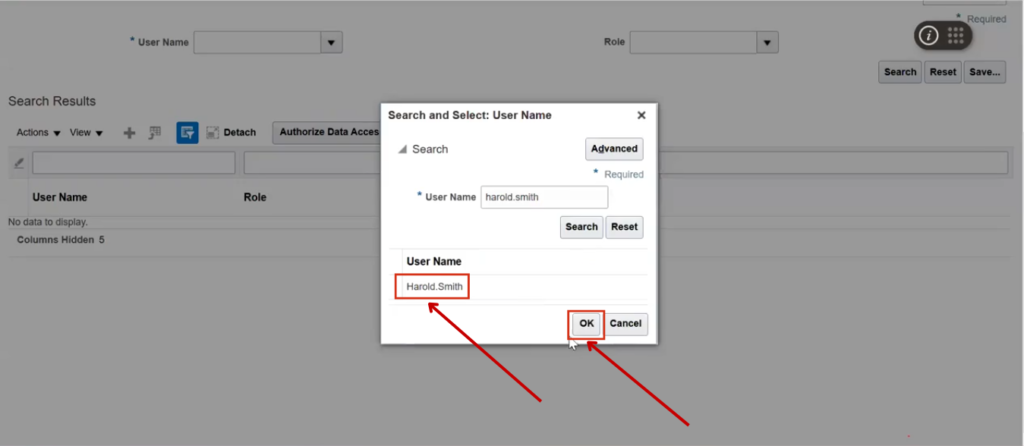
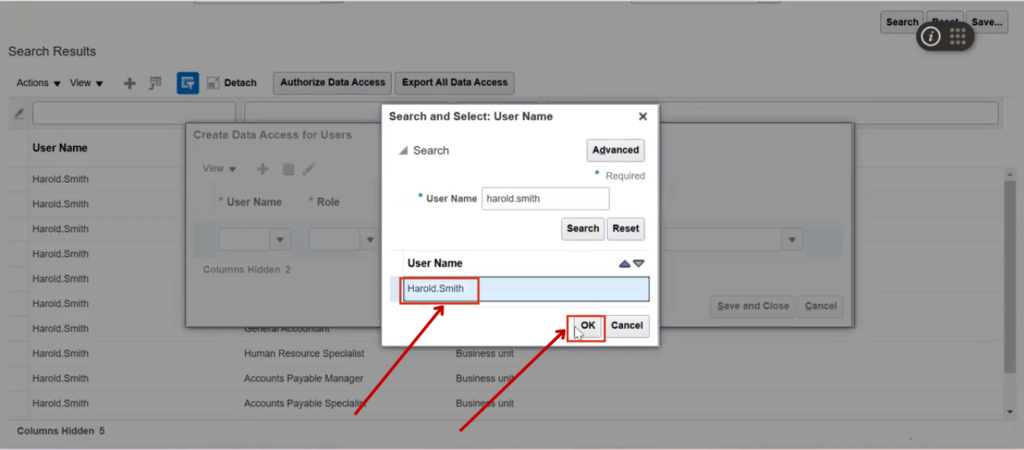
Select the username, then click on OK.
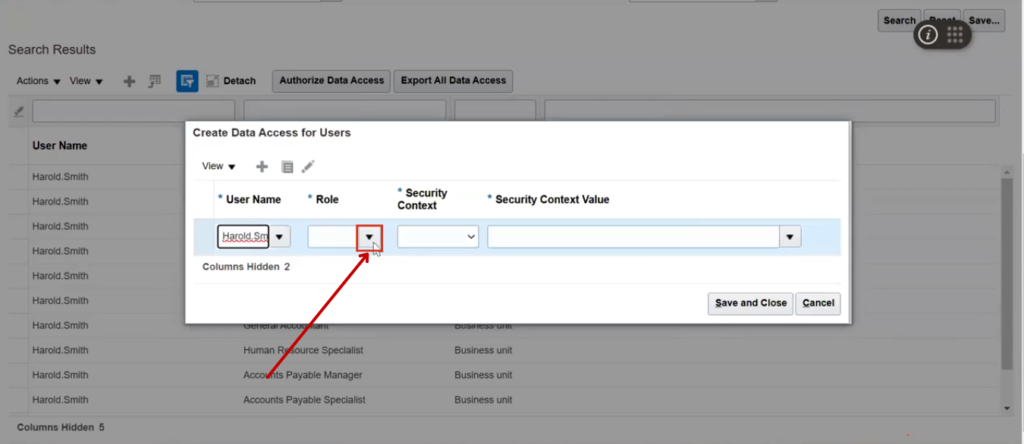
Click on the Role dropdown.
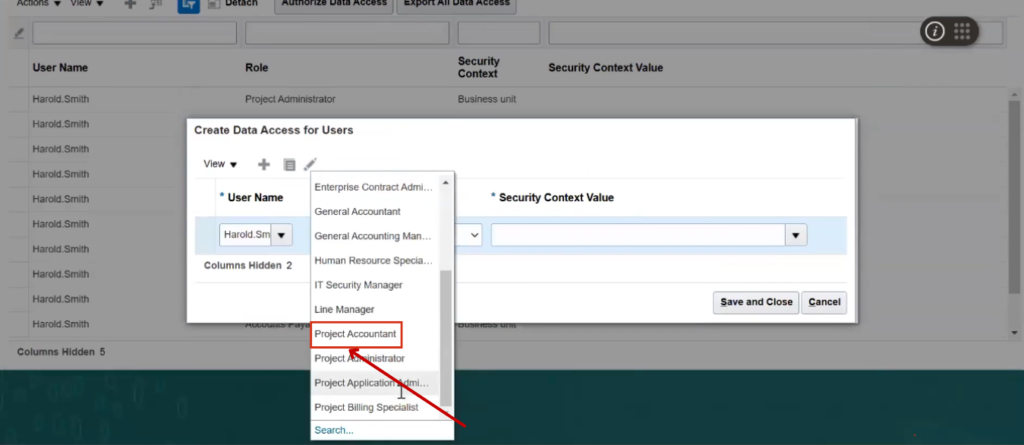
Select the Project Accountant role from the list.
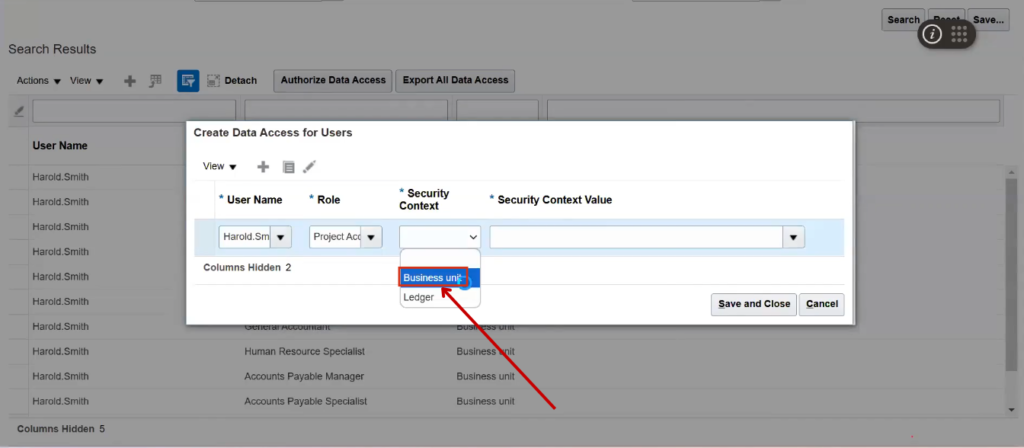
Select the Security Context as Business Unit.
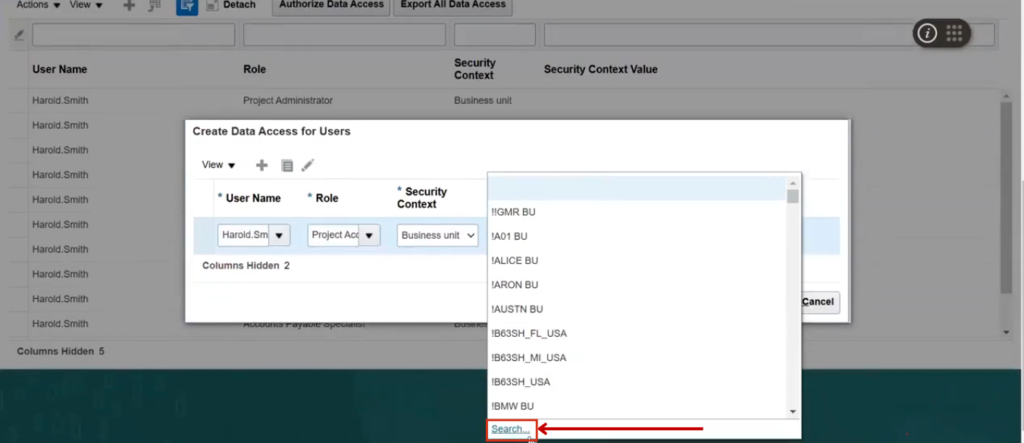
Select the Security Context value from the dropdown menu and click Search.
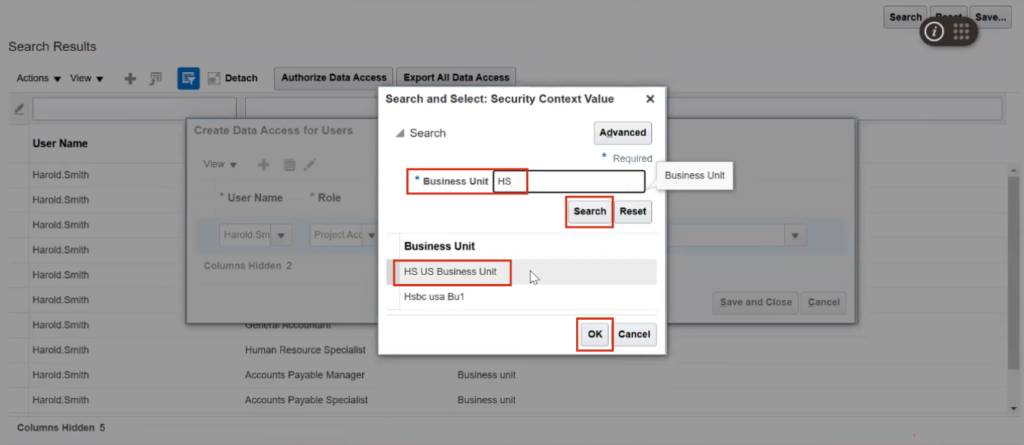
Enter HS as the Business Unit and click Search. The HS US Business Unit will appear in the search results. Select it and click OK.
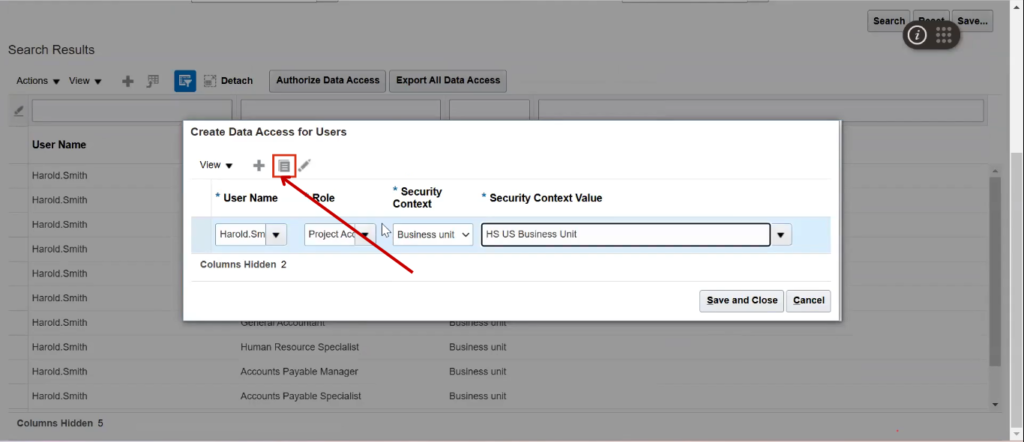
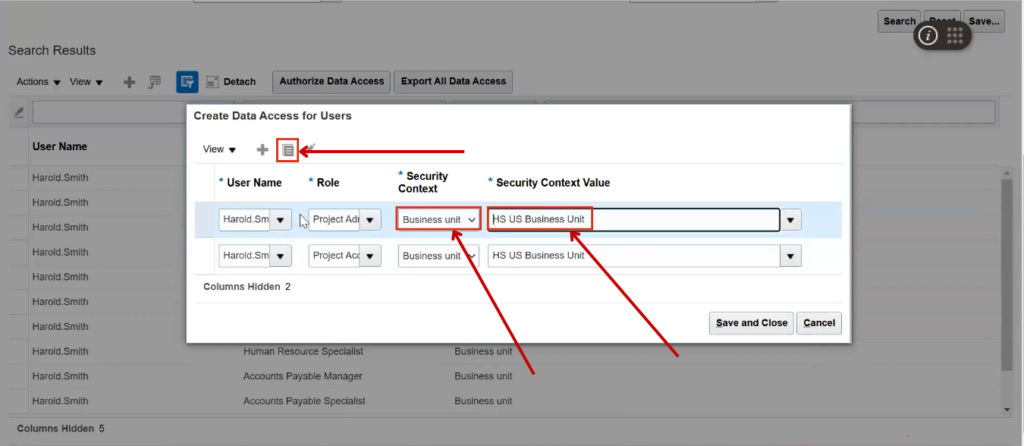
For faster operation, click on ‘Duplicate.
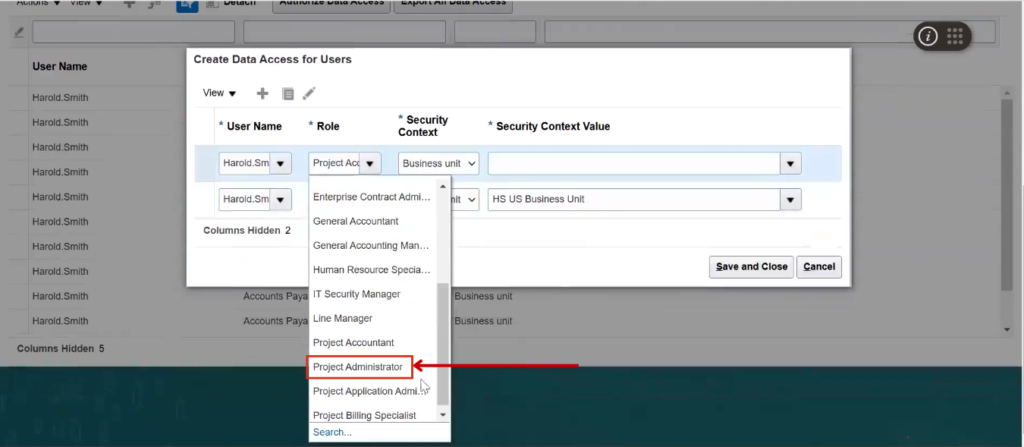
Select the Project Administrator Role from the list.
Select Business Unit from the Security Value dropdown and choose HS US Business Unit for the Security Context value.
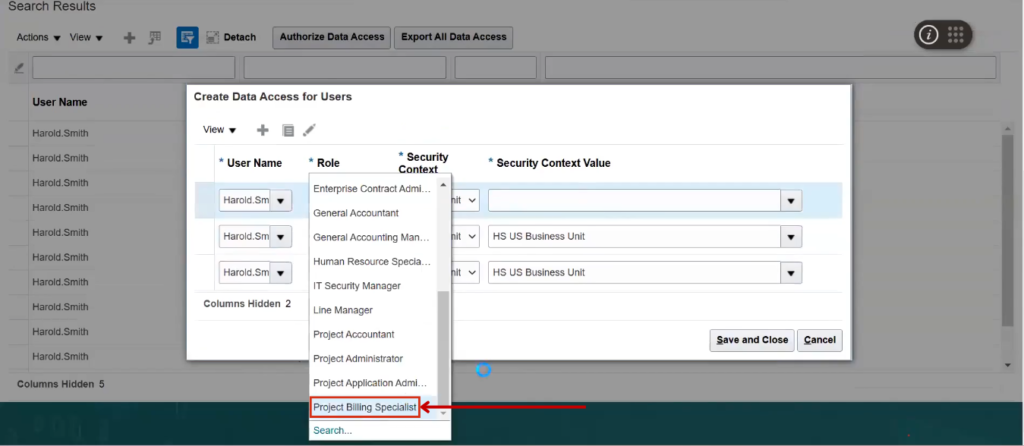
Click on Duplicate.
Select the Project Billing Specialist Role from the list.
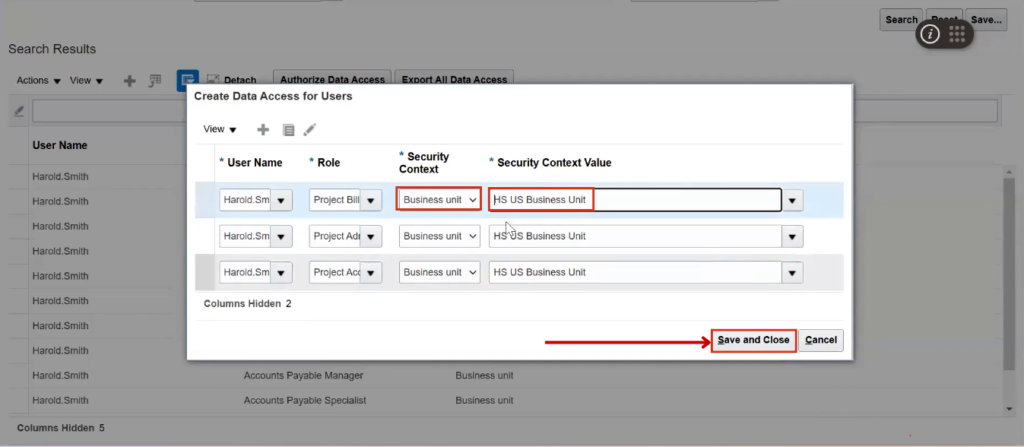
Select Business Unit from the Security Value dropdown and choose HS US Business Unit for the Security Context value.
Click on Save and Close.
Click on Done.
Click on Business Unit Data Access for Users.
Enter the following details:
Select Users with Data Access
Select the Username from drop down menu: Harlod.Smith
Click on Search
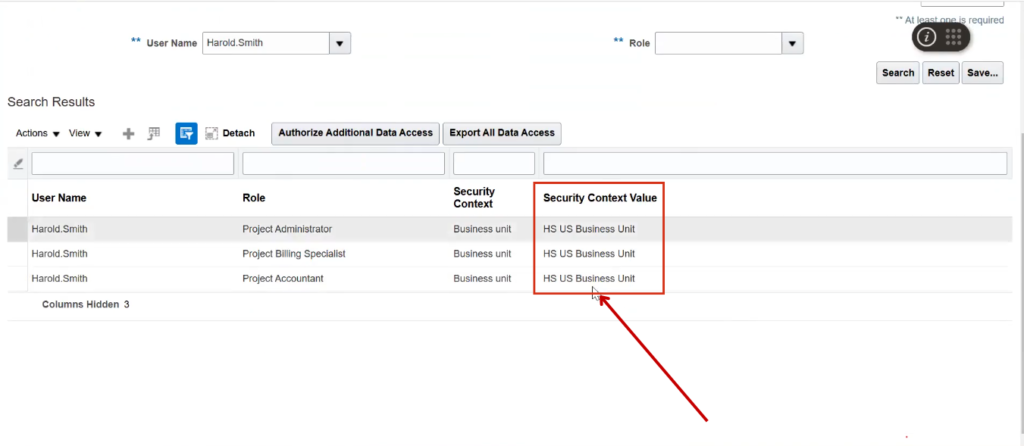
Values are also assigned to Harold Smith, as reflected in the search results.
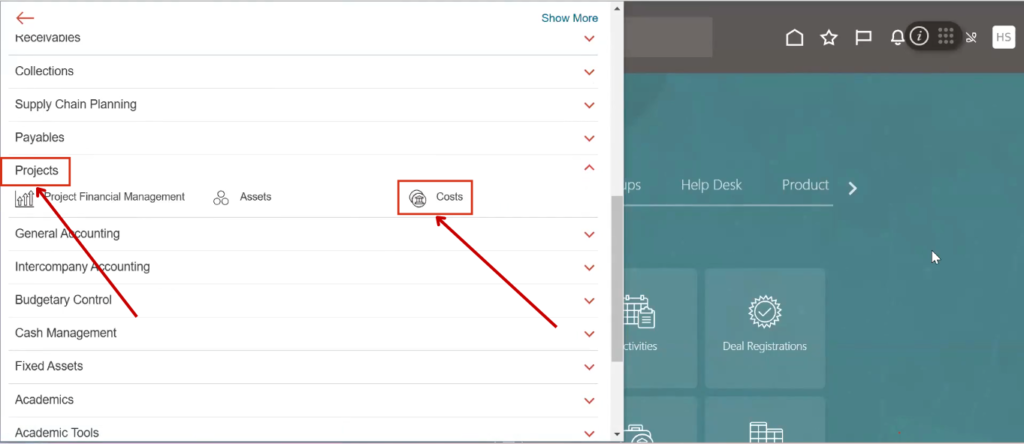
Expand the Projects section and click on Cost from the navigation menu to check whether the business unit is appearing or not.
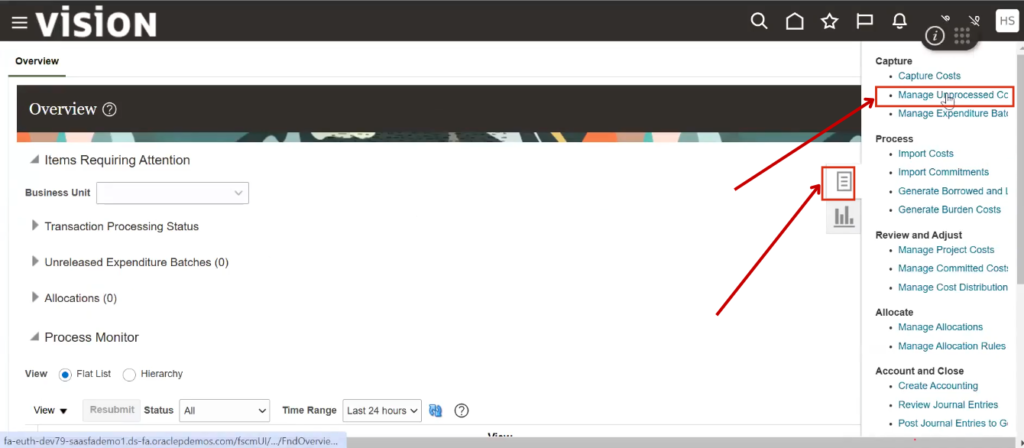
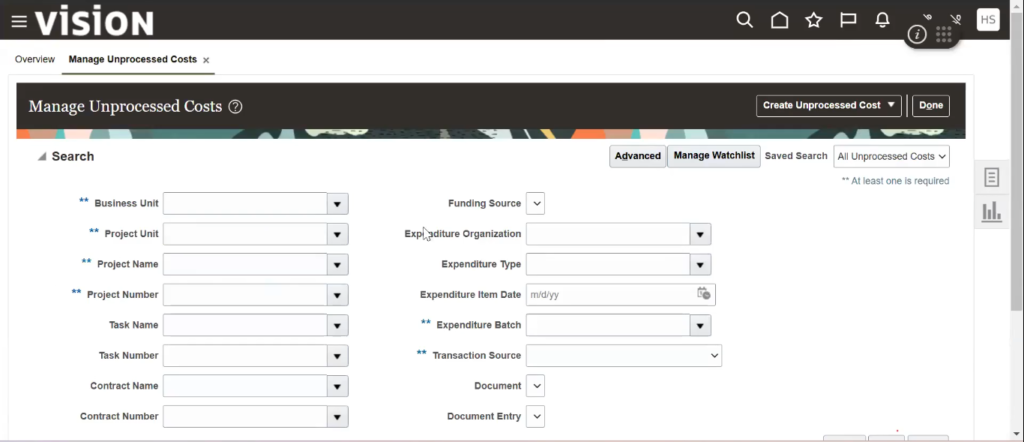
Click on the Task menu and select Managed Unprocessed CC.
The business process is still not appearing; therefore, run the LDAP process.
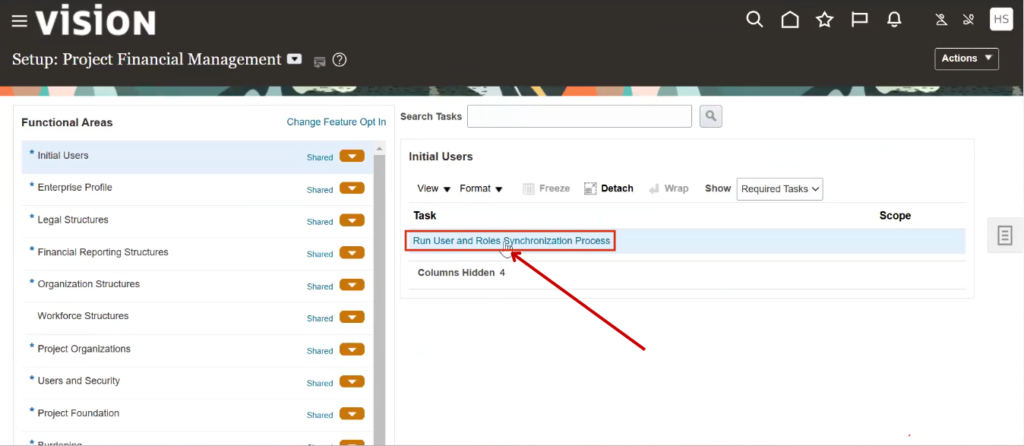
Go to Setup and Maintenance to run the LDAP process.
Click on Run User and Synchronization Process.
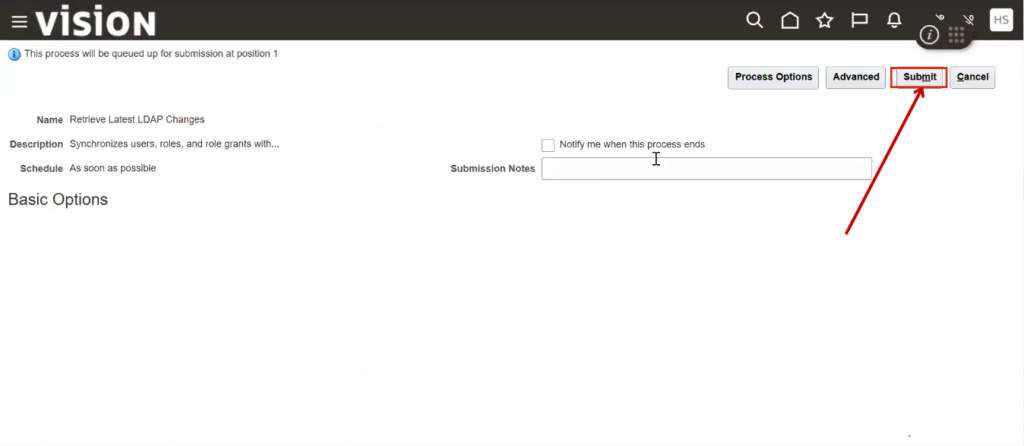
Click on Submit.
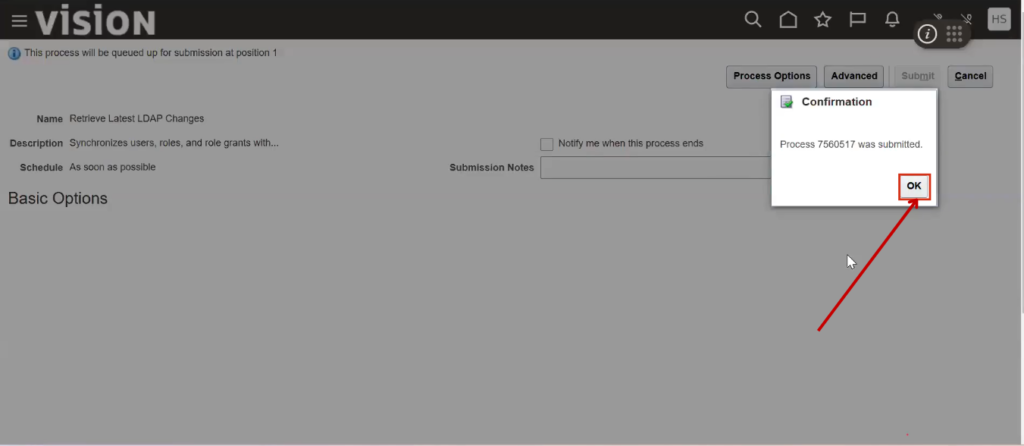
Click OK and wait a few minutes for the business unit to appear.
📊 Access Free Content Accross FIN, SCM, PPM, EPM, HCM, Fusion Technical
Learn Oracle Fusion Cloud. Explore our Free and Paid Courses.
💡 Get Free Access to:
✅ Video Recordings
✅ PDF Documents
✅ Practice Quizzes
✅ Live Sessions & Live Webinars (as per availability)
Create a Free AccountExplore Paid Courses ›
Oracle Fusion Financials
- ✔ General Ledger (GL)
- ✔ Accounts Payable (AP)
- ✔ Accounts Receivable (AR)
- ✔ Fixed Assets (FA)
- ✔ Cash Management
- ✔ Revenue Management